Getting Started
From a fresh clone of the Swift implementation to switching a light, in five steps. You need a Mac with Swift 6.2.3 or later (Xcode 26.2 or the Command Line Tools), on the same network as your CLUs, and Grenton Object Manager for the first step.
1Clone
git clone https://github.com/osieckiAdam/grenton-core-swift.git
cd grenton-core-swift
There is no separate build step: every swift run below fetches the one dependency, compiles what it needs and starts the example. The first run takes about 20 seconds.
2Find the IP address and PIN
In Object Manager, select the mobile interface (Interfejs mobilny) in the tree on the left and click Send to mobile devices (Wyślij na urządzenia mobilne). The dialog shows, top to bottom, the IP address of the computer running Object Manager, the port, and the token: your PIN.
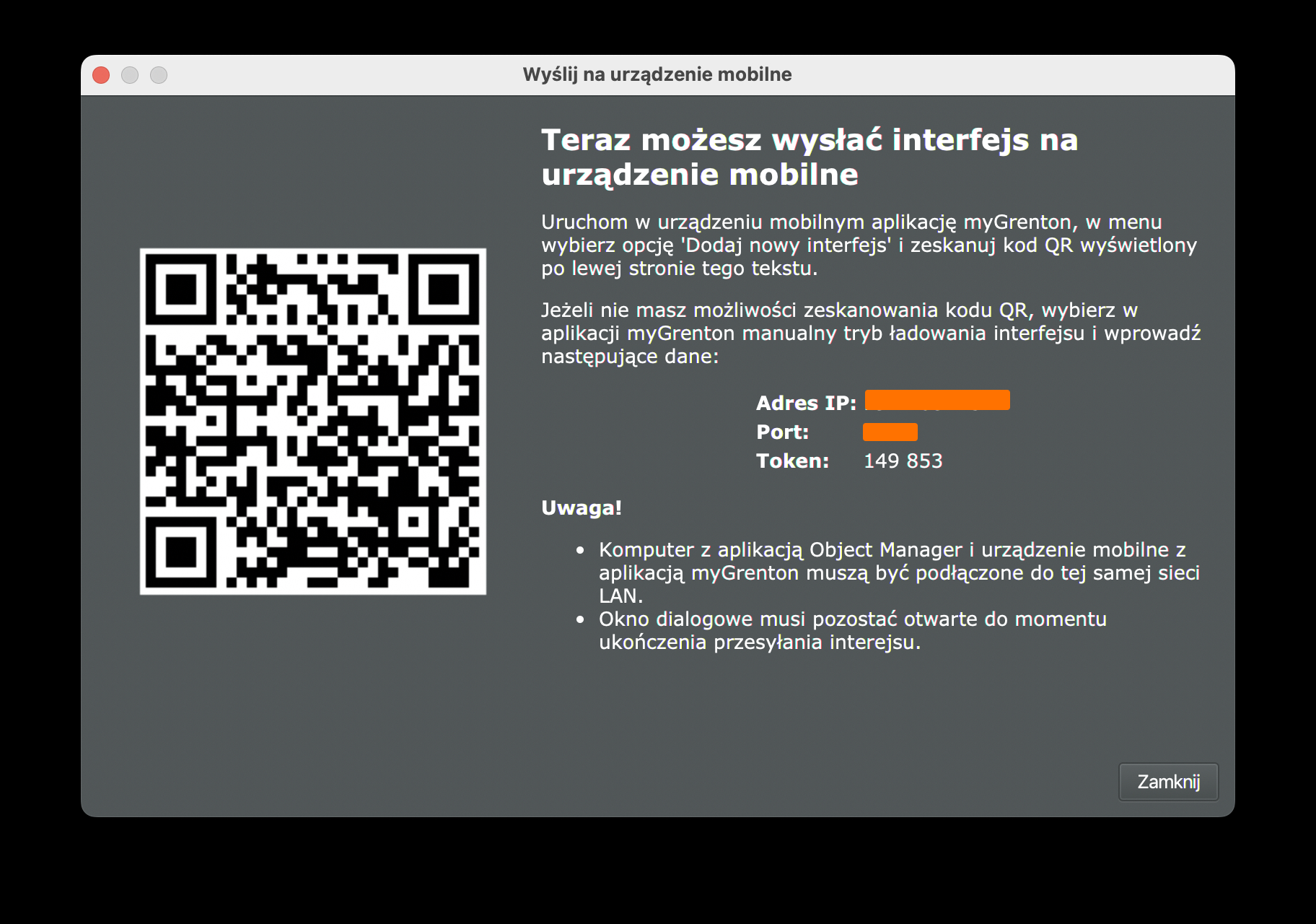
The screenshot hides the address and port; your dialog shows them above the token. Keep the dialog open for the next step.
3Download the interface
swift run fetch-interface 192.168.1.50 dist/interface.zip 149 853Type the PIN as the dialog shows it, space included. If the port is not 9998, append it to the address: 192.168.1.50:9999. The saved file lets every next step run without a PIN.
dist/ is git-ignored.Without a PIN, the project file saved in Object Manager (.omp) works too: swift run import-project house.omp reads the interface and lists the devices.
4List your devices
swift run list-devices dist/interface.zipThis works offline. Each device lists its entities by id and name:
switch "Living room ceiling" — page SALON
  k3Xq9TzA_0: Living room ceiling
At the end you also see the hardware shown by several widgets, such as a thermostat that appears on two pages under two names.
5Watch and control
See every entity's live state, then the changes as they happen. This is read-only:
swift run watch-state dist/interface.zip 30Turn a light on and off with an id from step 4. The example waits for the CLU to confirm:
swift run switch-light dist/interface.zip k3Xq9TzA_0 on
swift run switch-light dist/interface.zip k3Xq9TzA_0 offNext
- Use the library in your own app: add the package, start a system, control entities.
- Concepts: interfaces, devices, entities and physical objects.
- All examples, including
set-thermostat.